Step-by-step boards (visual schedules)
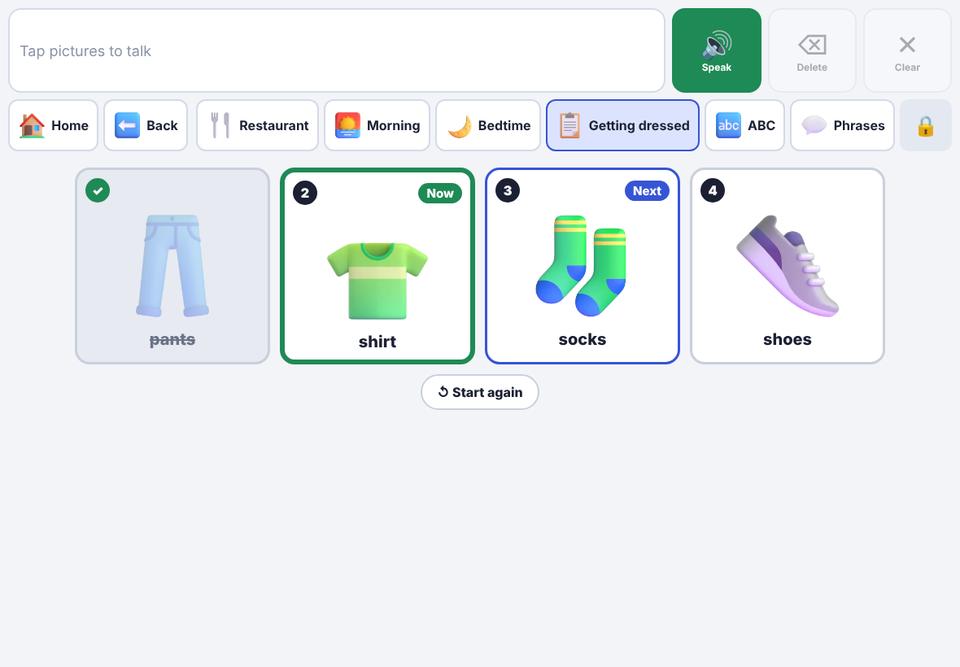
Show a routine as steps in order. The current step is marked Now and the next one Next.
- 1
Open the parent area: in the talker, press and hold the 🔒 button (top-right) for about 1½ seconds, then answer the question.
- 2
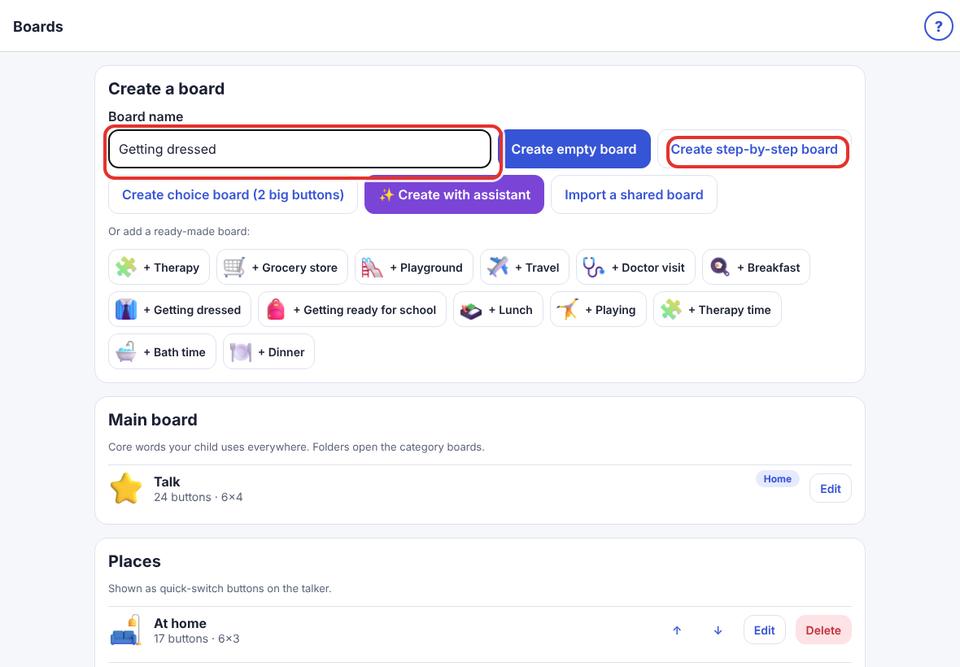
Tap Edit boards. Type a name (for example “Getting dressed”) and tap Create step-by-step board.
- 3
In the editor, tap the empty + boxes in order and add each step (Pants, Shirt, Socks, Shoes). See “Add a button”.
- 4
Go back to the talker and open the board from the strip. The first step shows Now, the next shows Next.
- 5
Tapping a step says it and ticks it off. Tap Start again to reset.
Steps don’t go into the message bar. A schedule is for following steps, not building sentences.
To turn any board into steps, or back, use Show as steps (first, then) in the board editor.